
 Written by Taylor London
 Applies to: Motivated seller sites published with auto-location pages starting November 2025 and any Carrot site published from February 2026 on.
Introduction
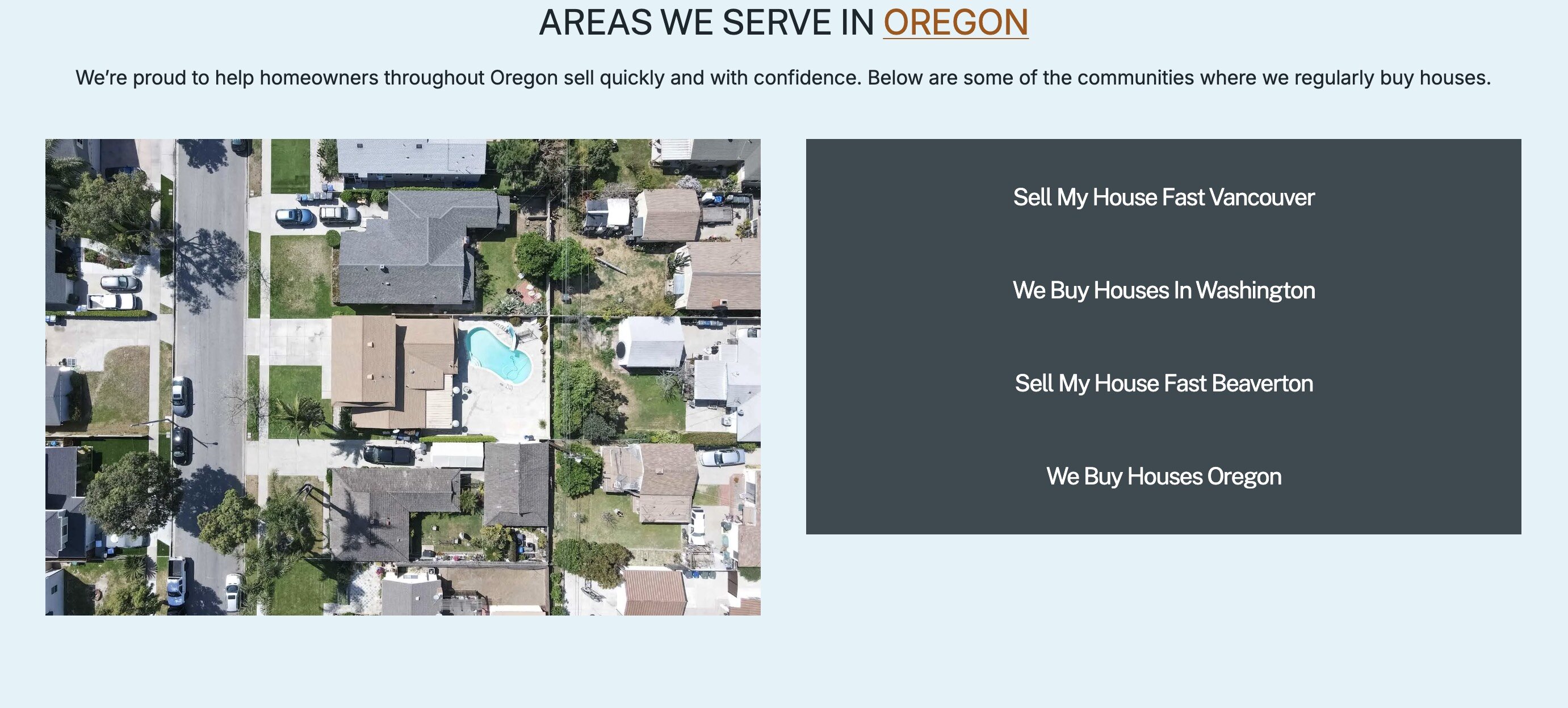
The Areas We Serve section is automatically included on the homepage of newly created Carrot sites. This section displays your service locations and provides valuable internal links to your auto location pages—a best practice for local SEO that helps both visitors and search engines understand your service coverage.
This section is placed by default in the lower portion of your homepage–the best part? It automatically pulls in your auto location pages, keeping your site content up-to-date as you add new service areas.
Finding the Areas We Serve Section
The Areas We Serve section is typically positioned towards the bottom of your homepage, after your main content and before the FAQ section.
To add this section manually to other pages:
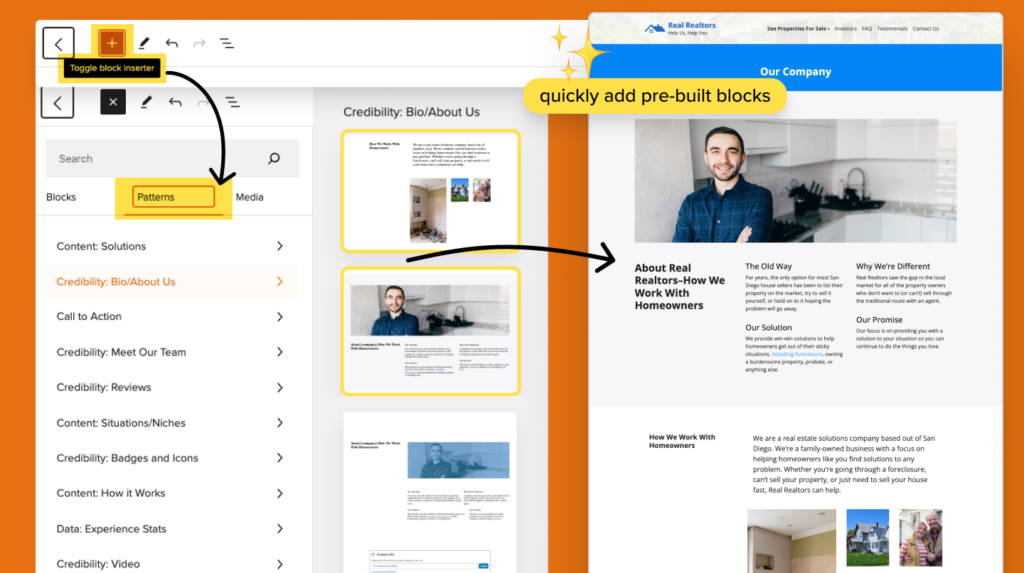
- In the Carrot Editor, click the “+” (inserter) button in the editor
- Select the Patterns tab
- Navigate to the Service Areas category
- Choose your preferred layout variation
Understanding the Query Loop Block
The Areas We Serve section uses a special block called the Query Loop block. This block is designed to automatically display content from a specific post type—in this case, your auto location pages.
Here’s what makes it powerful:
- It automatically updates when you add new auto location pages
- If you don’t have any auto location pages created, the section will appear blank
- It creates internal links from your homepage to your location pages, which search engines value
Why This Matters for SEO
Internal linking from your homepage to location pages is a local SEO best practice. Here’s why:
- Authority distribution: Your homepage is typically your most authoritative page. Links from it help your location pages perform better in search results.
- Clear site structure: Search engines understand your service coverage when your homepage connects to each location you serve.
- Improved crawling: These links help search engines discover and index your location pages more effectively.
The location names are formatted as H3 headings by default. This is the correct choice because:
- The main “Areas We Serve” section heading is H2
- Location names underneath should be H3 to maintain proper heading hierarchy (H2 → H3)
- This structure helps both users and search engines navigate your page logically
Note: You can use exact-match anchor text (like city names) in internal links without concern—this is standard and recommended for internal linking.
Customizing the Section
Layout Options
The section comes with multiple layout variations, including:
- Side-by-side layouts with a stock image
- Grid layouts without images
- Column-based displays
To adjust the number of columns:
- Click into the Query Loop block
- Adjust the columns setting to change how locations are displayed
Limiting the Number of Locations Displayed
If you serve many areas and want to show only a subset on your homepage:
- Click to select the Query Loop block (you may need to click the parent block)
- In the block settings panel, find “Items per page” or “Limit”
- Adjust the number of locations you want to display
Changing Colors and Styles
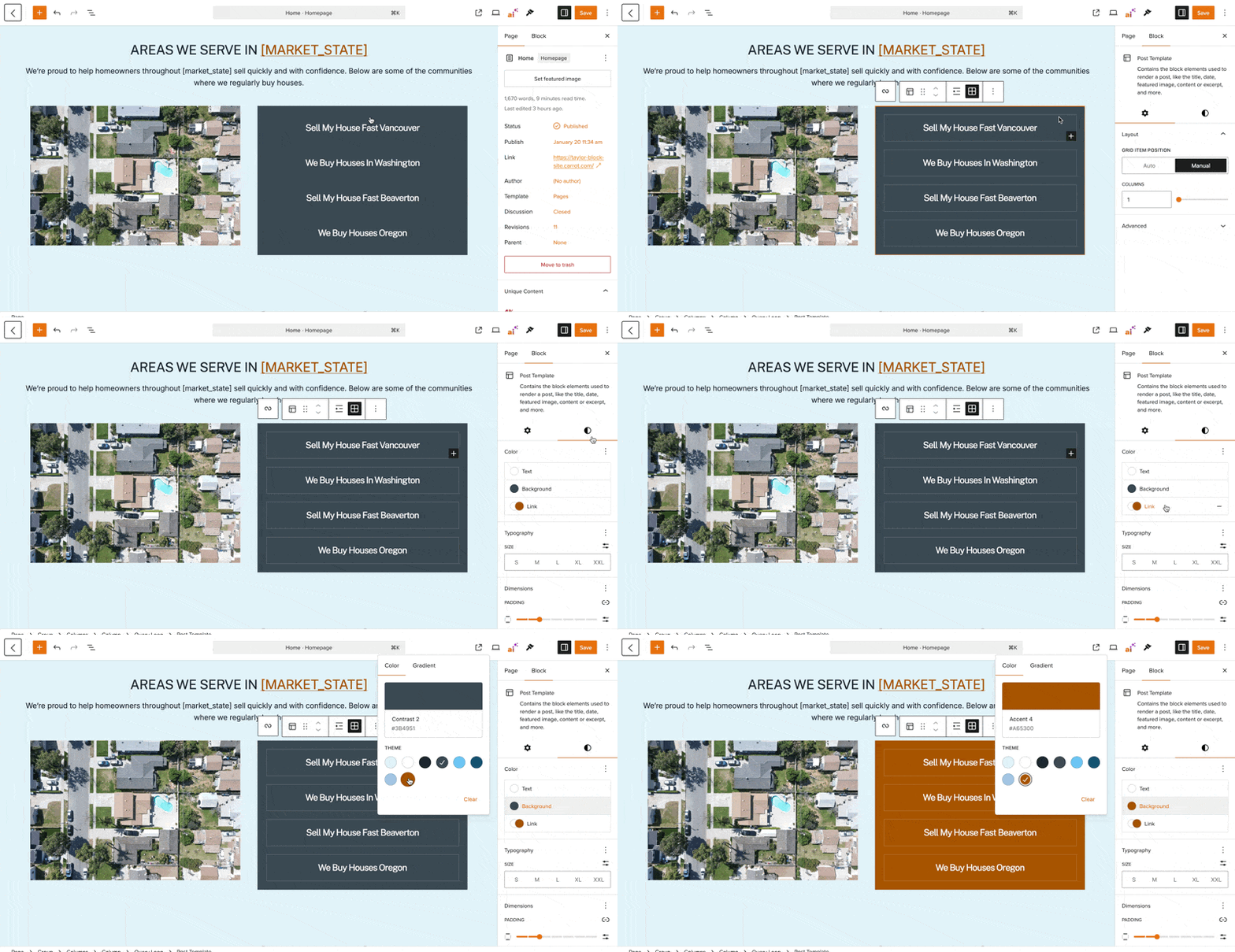
To customize the appearance of each location card:
- Click into the Post Template block (the inner block within the Query Loop)
- Use the block settings panel to adjust:
- Background color of the location cards
- Link color for location names
- Text color for any descriptions
- Hover state colors
Sorting Your Locations
You can control the order in which your locations appear:
- Select the Query Loop block
- In the block settings, find the Order option
- Choose from:
- Newest to Oldest – Most recently added locations first
- Oldest to Newest – Original locations first
- A to Z – Alphabetical order by location name
SEO Best Practices
The location names are formatted as H3 headings by default. This is intentional and follows SEO best practices:
- H3 is the recommended level for this type of internal linking section
- It provides structure for search engines without keyword stuffing
- Going higher than H3 (to H2 or H1) could send the wrong signals to search engines
- Do not change the heading level—H3 is the sweet spot
This section helps search engines understand your service coverage while creating valuable internal links throughout your site.
Tips
- No need to over-style this section. It’s primarily designed for search engines rather than heavy user interaction. Most visitors won’t scroll this far down the page.
- Focus on location page content rather than perfecting this display section. The real SEO value comes from the individual location pages it links to.
- Keep the default settings unless you have a specific reason to change them. The out-of-the-box configuration is optimized for best results.
Troubleshooting
Why is my Areas We Serve section blank?
The section displays locations from your auto location pages. If you see a blank section, it means:
- You haven’t created any auto location pages yet
- Your auto location pages haven’t been published
To resolve this: Create and publish your auto location pages, and they’ll automatically appear in this section.
Can I manually add locations to this section?
No, the Query Loop block is designed to pull only from auto location pages. If you want to display manually created location pages:
- You’ll need to either convert them to auto location pages
- Or, replace this section with a different block pattern that supports manual page selection
- Or, remove this section altogether if it doesn’t fit your business needs
Can I use this section on pages other than the homepage?
Yes! You can add the Areas We Serve pattern to any page using the block pattern inserter (click “+”, then Patterns tab, then Service Areas category).